SDK & CLI
The .NET SDK and its command-line interface (CLI) are the foundation for creating, building, testing, and deploying .NET applications. Mastering the CLI unlocks efficient cross-platform development workflows.
dotnet new — Project Templates
The dotnet new command scaffolds projects from built-in or custom templates. List available templates with dotnet new list.
dotnet new console -n MyConsole
dotnet new webapi -n MyApi
dotnet new mvc -n MyMvcApp
dotnet new classlib -n MyLibrary
dotnet new xunit -n MyTests
dotnet new sln -n MySolution
Use --output to specify a target directory and --framework to target a specific TFM like net8.0.
Custom Templates
You can create your own templates by adding a .template.config/template.json folder to a project and installing it via dotnet new install <path>.
dotnet build — Compiling Code
dotnet build compiles the project and its dependencies. Internally it invokes MSBuild with the designated target.
dotnet build                              # Debug build
dotnet build -c Release                   # Release build
dotnet build --no-restore                 # Skip restore if already done
dotnet build --verbosity normal           # Control log level
The output is written to bin/Debug/<tfm>/ or bin/Release/<tfm>/.
dotnet test — Running Tests
dotnet test discovers and runs tests in one or more test projects.
dotnet test
dotnet test --filter "FullyQualifiedName~Integration"
dotnet test --logger "console;verbosity=detailed"
dotnet test --settings test.runsettings
It supports all major frameworks (xUnit, NUnit, MSTest) and can produce coverage reports via Coverlet.
dotnet run — Executing Applications
dotnet run compiles and runs a project in one step. Useful during development.
dotnet run                               # Run with default profile
dotnet run -- --port 5000                # Pass arguments to app
dotnet run -c Release                    # Run release build
dotnet run --project src/MyApp # Target a specific projectdotnet publish to create a self-contained deployment rather than dotnet run.dotnet publish — Deploying Applications
dotnet publish compiles the application and copies all necessary files to a deployment folder.
dotnet publish -c Release -o ./publish
dotnet publish --self-contained true --runtime win-x64
dotnet publish -p:PublishSingleFile=true
dotnet publish -p:PublishReadyToRun=true
dotnet pack — Creating NuGet Packages
dotnet pack -c Release
dotnet pack -o ./nupkgs
dotnet pack -p:Version=2.0.0
dotnet nuget — Package Management
dotnet nuget push MyPackage.1.0.0.nupkg --api-key ... --source https://api.nuget.org/v3/index.json
dotnet nuget delete MyPackage 1.0.0 --non-interactive
dotnet nuget locals all --clear
dotnet nuget list source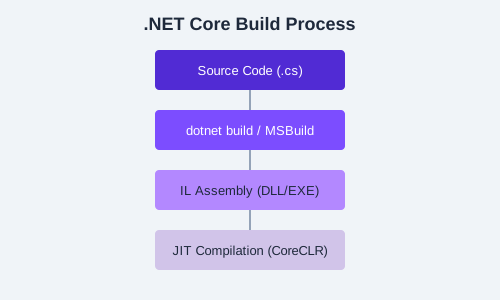
global.json and Roll-Forward Policy
A global.json file in the project root pins the SDK version and configures roll-forward behavior:
{
  "sdk": {
    "version": "8.0.100",
    "rollForward": "latestMajor",
    "allowPrerelease": false
  }
}
Roll-forward policies include patch, feature, minor, major, latestPatch, latestFeature, latestMinor, latestMajor, and disable.
dotnet --version to check the current SDK version and dotnet --list-sdks to see all installed SDKs.CliDemo containing a console app and a class library. Add NuGet package Newtonsoft.Json to the library, build in Release mode, run the app, and publish a self-contained deployment for your OS. Commit the global.json that pins the SDK to your current version.